Settings & Configuration
The Settings area is where you configure how Rivvex works for your business. Most settings only need to be set up once, but you can adjust them at any time as your business evolves.
Required role: Site Admin for most settings. Personal settings are available to everyone.
Personal Settings
Every user can manage their own profile:
- Go to Settings → Personal.
- Update your name, email, and notification preferences.
Organization Settings
Organization settings affect your entire company across all sites.
- Go to Settings → Organization.
- Configure:
- Organization name: Your company name as it appears in communications
- Logo: Your company logo, used on quotes, invoices, and customer emails
- Address: Your business address
Site Settings
Site settings control how a specific site (location or branch) operates. If you have multiple sites, each one can be configured independently.
- Go to Settings → Sites.
- Select a site to configure.
General
- Timezone: The timezone for this site. All schedule times, timestamps, and due dates use this timezone.
- Default schedule time: The default start time when scheduling new jobs (e.g., 8:00 AM).
Email Configuration
- Reply-to email: The email address that appears in the “Reply-To” field on customer communications. When customers reply to a quote or invoice email, their response goes here.
- Inbound email name: The display name used for incoming email routing.
- CC emails: Additional email addresses that receive copies of all customer communications from this site.
- Invoice sending toggle: Enable or disable the ability to send invoices from this site.
Timesheet Settings
- Pay period type: Weekly, Bi-Weekly, Bi-Monthly, or Monthly. See Timesheets for details.
- Hours per daily adjustment: The threshold for automatic time adjustments.
- Daily adjustment amount: How many minutes to add/subtract when the threshold is hit.
- Must be continuous: Whether time must be a continuous block for adjustment rules to apply.
- Custom tracked time types: Add categories beyond “Work” (e.g., Travel, Training, Shop Work).
Time Off
- Time off requires approval: Toggle on to require manager approval for time-off requests. Toggle off for automatic approval.
Default Scheduling View
This controls what you see first when assigning people to a scheduled job.
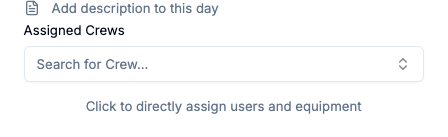
Crew shows crew selection up front. You can expand direct user and equipment assignment with a click.
Direct Assignment shows Primary, Helper, and Equipment fields first. Crew assignment is one click away.
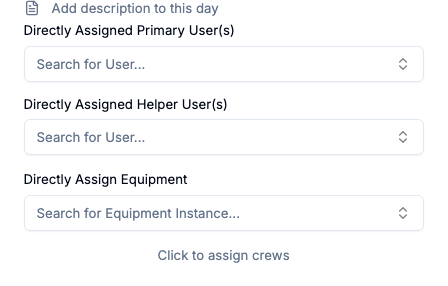
Both modes give you access to all the same fields. This just sets the default.
To change it:
- Go to Settings → Current Site.
- Scroll to Default Scheduling View.
- Pick Crew or Direct Assignment from the dropdown. It saves automatically.
Managing Users
- Go to Settings → Users.
- From here you can:
- Invite new team members
- View and manage existing users
- Change roles and permissions
- Deactivate users
See Employee Directory & Permissions for detailed guidance.
Job Types
Job types are the categories of work your business performs, like “Roof Repair,” “Gutter Cleaning,” “Deck Installation,” etc.
- Go to Settings → Job Types.
- Add, edit, or remove job types.
Job types are used when creating jobs and for reporting (you can see revenue by job type in Reports).
Integrations
Manage connections to external systems:
- Go to Settings → Integrations.
- Connect or manage:
- QuickBooks: Accounting software integration
- Other integrations as available
Each integration has its own configuration page with sync options, field mapping, and connection status.
What to Configure First
If you’re setting up Rivvex for the first time, here’s the recommended order:
- Organization settings: Name, logo, address
- Site settings: Timezone, default schedule time
- Job types: The types of work you do
- Email settings: Reply-to address, CC emails
- Timesheet settings: Pay period type and adjustment rules
- Users: Invite your team and assign roles
- Integrations: Connect QuickBooks if you use it
- Equipment: Set up equipment types and instances (if applicable)
You can always come back and adjust these settings as you learn what works best for your business.